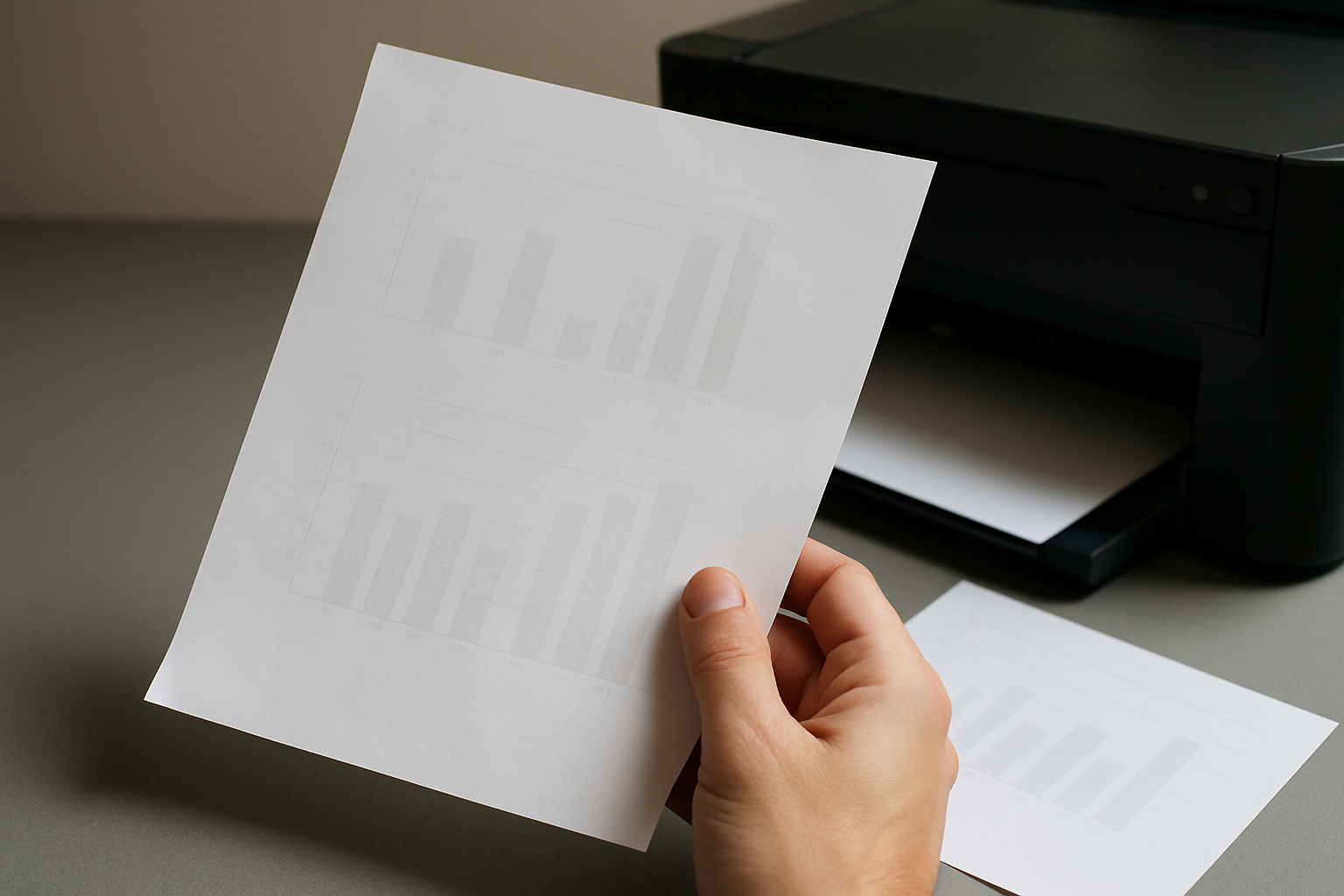
There is nothing more disappointing than waiting for an important document or photo to print, only to find that the output looks faded, washed out, or lacking in vibrancy. Faded prints are a common complaint among printer users, but the causes are usually straightforward to identify and fix. This guide explains the most common reasons for faded printing and provides practical solutions to restore your print quality.
Low Ink or Toner Levels
The most obvious cause of faded prints is low ink or toner. When your cartridges are running low, the printer may not be able to deposit enough material on the page, resulting in light or uneven output. Most printers have a built-in ink monitoring system that alerts you when levels are low. However, these indicators are not always accurate. If your prints appear faded, start by checking your ink or toner levels through your printer's software. If a cartridge is low, replace it with a new one. For inkjet printers, you can also try removing the cartridge and gently shaking it to redistribute the remaining ink, which may provide a temporary improvement until you can get a replacement.
Clogged Print Heads
In inkjet printers, clogged print heads are a leading cause of faded or streaky prints. Print heads have tiny nozzles that spray ink onto the paper. When these nozzles become blocked by dried ink, the flow is restricted, leading to poor print quality. Most printers include a print head cleaning utility that you can access through the printer software or control panel. Run this cleaning cycle once or twice and then print a test page to check for improvement. If the problem persists, you may need to run a deeper cleaning cycle or use a manual cleaning kit. For severe clogs, leaving the print heads soaked in a specialized cleaning solution overnight can help dissolve the dried ink. Preventing clogs is easier than fixing them, so remember to print regularly to keep the ink flowing through the nozzles.
Incorrect Print Settings
Sometimes the issue is not with the printer hardware but with the print settings you are using. If you have accidentally set your printer to draft or economy mode, the printer will use less ink to save costs, resulting in lighter prints. Check your printer settings before printing and ensure you have selected an appropriate quality mode. For documents, the normal or standard mode is usually sufficient. For photos or presentation materials, choose the high-quality or best mode. Additionally, make sure the paper type setting matches the paper you are using. Printing on glossy photo paper with the plain paper setting selected will produce suboptimal results because the printer applies ink differently for different paper types.
Other Contributing Factors
Environmental conditions can also affect print quality. High humidity can cause paper to absorb moisture, which affects how ink adheres to the surface. Extremely dry conditions can lead to static electricity that interferes with toner placement in laser printers. Using incompatible or expired paper can also contribute to faded output. Finally, if you are using refilled or third-party cartridges, they may not deliver the same quality as original cartridges. If you have tried all the above solutions and your prints still look faded, consider having your printer serviced by a professional technician to check for underlying hardware issues.